
Frequently Asked Questions
The questions we are asked most often about mouse acceleration and Custom Curve. If your question is not answered here, the User Guide covers the application in full, and our community Discord is the fastest way to reach us.
Mouse Acceleration Basics
What is mouse acceleration?
Mouse acceleration changes your sensitivity the faster or slower you move your mouse. Without acceleration, sensitivity stays the same regardless of how fast you move the mouse.
This sensitivity change is expressed as a curve that typically allows you to go from a lower sensitivity to a higher one - not by adjusting game settings, but by changing the speed at which you move the mouse. In that motion you get a variable sensitivity as defined by the curve shape.
This can give the benefit of low sensitivities at slower hand speeds (such as a high degree of accuracy) combined with the benefits of high sens (like quick turns for comfortable navigation or faster flicks) as you move your hand faster.
The overall benefit is comfort & flexibility. This increased comfort can improve your gameplay long-term as you reduce the physical effort required to make the cursor / crosshair do exactly what you want it to.
I heard mouse accel will ruin my aiming muscle memory?
This is a myth. Practicing moving a mouse does build general motor control through muscle and nervous system training. But we don't aim by memorizing pad distances - we aim through hand-eye coordination, which functions identically regardless of whether the cursor is accelerated or whether you simply choose different static sensitivities more suited to certain types of game.
It's natural to develop familiarity with a particular setup over time, and it's true that bad setups can exist for a given task - but this is equally true for both accelerated and static sensitivities.
If switching sensitivity within reasonable ranges makes aiming fall apart though, that usually suggests under-developed mouse control that is worth working on, not that it's a sacred number you're not allowed to touch.
How should I get started?
We recommend you start with the preset profiles included in the application. A detailed overview is in the help menu, and also in the User Guide.
What Windows mouse settings should be set before configuring mouse acceleration?
You can set the Windows Pointer Slider to any values to adjust the cursor sensitivity. Custom Curve takes effect well before this stage. The Windows settings don't have effect in modern games that use Raw Input.
If you have the Windows Enhance Pointer Precision built-in cursor accel enabled, Custom Curve will prompt you (by default) to disable it. This isn't because it causes a technical problem - it is simply much harder to tune a curve when two sources of acceleration are stacking.
This also goes for any other mouse filter driver - it is best to only use Custom Curve.
I use this game sensitivity value - what settings should I use?
There is no 'curve for your game sensitivity'. Any curve can be applied to any game sensitivity value. The important thing is how you move your mouse, not which settings you use in-game.
What is useful to have is a pre-defined goal in your head. e.g. "I like the accuracy when I play at this low sens, but really struggle with turning around so need this other sens for turns".
If you haven't played on multiple sensitivities before, learned how your own movements benefit from different sensitivities, and developed some experience of how you might want to use them, then we suggest you start experimenting asap. This knowledge of your own preferences and mouse movement style is key to success.
Is my curve good for my favourite game?
A game may encourage particular kinds of movement in its gameplay loop, and those might suit a particular curve shape (at least, for you). But curves are not really game specific, and there is no objectively best one, so this is a question only you can answer. A curve is at its best when shaped around your own aiming habits, which is why one you create yourself usually works best for the game you're playing.
With that said, if you feel like your curve is not working as you'd like, don't be afraid to ask for help and opinions. You can also try out other people's setups - not because someone else's curve will necessarily suit you, but because it builds a sense of what kind of setup might work better for you. You can see other people's shared curves in the #user-profiles channel on our Discord.
Purchase & Installation
Is this Windows only?
Yes. Custom Curve currently supports Windows 10 and Windows 11 only. If that changes, this page will be updated.
Modified or 'debloated' Windows builds are not supported, as they often have core Windows components removed. Custom Curve may still run, but you would need to troubleshoot any problems yourself.
How do I download & buy Custom Curve?
You can download Custom Curve from the download page. After downloading, the CustomCurve_v4.x.xxx_Setup executable will be placed in your browser downloads folder. From there, just double click this file to run it and follow the instructions to install. After reboot, double click the Custom Curve icon on the desktop to launch the application.
Keys can be purchased directly from the mouseacceleration.com homepage.
I have lost my license key - how do I retrieve it?
If you have lost your key, you can recover it here. If you purchased via Humble Bundle, but did not provide a working email upon activation, you would need to contact Humble support to recover your key.
I previously bought Custom Curve 3 Pro - do I need to buy again?
No. Your Custom Curve 3 Pro key works for Custom Curve 4. It is a free upgrade for all existing users.
Is this a subscription?!
No. It is a one-time purchase that lasts for the lifetime of the product, also known as a 'perpetual license'.
How do I make it run at startup?
The Custom Curve driver always runs at PC startup and the last settings are always automatically applied.
If you want the GUI to run at startup, there is an option in the menu.
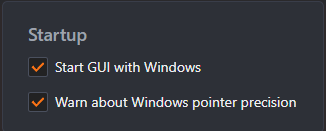
The GUI is always required to be running for all profile switching functionality.
How can I disable the settings?
You can disable the settings at any time by unticking the "processing enabled" option. This is also bindable to a key command - the default bind is Ctrl Alt F12.
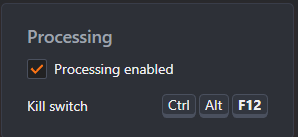
There is also a 'Bypass' preset in the menu which does the same thing effectively - and this can be bound to any profile switch.
If I uninstall it, how can I confirm if it is uninstalled?
If you have uninstalled the driver correctly (and rebooted), then it cannot affect your mouse input. You can check whether the driver is running by typing the following in a command prompt:
driverquery | findstr ccmouaxl
If no entry is returned, then the driver is not present on your PC and is physically impossible for it to be affecting your mouse input.
What happened to the Steam release?
Our initial Custom Curve 4 pre-release / beta ran on Steam, and we originally hoped to release on that platform. There are general compatibility issues, however, around the Steam platform and utility applications installing drivers, which would always be required for a system-wide mouse sensitivity control application. This is not a problem with the Custom Curve driver specifically - it would apply to any utility that installs a driver.
We have since released Custom Curve 4 as a standalone application instead. Any users still using the Steam beta should now uninstall it and download the standalone version, since the Steam beta does not receive updates.
What happened to LE - will there be a free version of Custom Curve 4?
Custom Curve 3 Pro and the Lite Edition demo are discontinued and no longer available for download. If you own Custom Curve 3 Pro, your license key entitles you to a free upgrade to Custom Curve 4.
New users can also download Custom Curve 4 for a free time-limited trial. There is no free demo currently planned for Custom Curve 4.
Anti-Cheat & Bans
Is this aim assist?
No. Custom Curve doesn't interact with your games, or even know one is installed - it only applies a fixed mathematical transformation to your mouse movement. The aiming is yours.
Can I get banned from my favourite game?
There has never been a confirmed report of anyone being banned in any game for using mouse acceleration.
The Custom Curve driver is Microsoft signed, and is deliberately designed to be anti-cheat friendly. It can only transform mouse movement that you physically make - it cannot generate any input of its own, which is what a driver would have to do in order to aim on your behalf. Writing new settings to the driver is also subject to an enforced delay - a separate program could never push arbitrary sensitivity values to the driver in real time to attempt to assist aiming.
Some competitive players prefer to have the interface closed when playing so there is no user space connection to the driver whatsoever, at the expense of disabling all profile switching. Most users do not do this, however, without issue.
Why doesn't it work in my game?
Due to the way Custom Curve works as a kernel-mode driver, if the settings are active on the desktop they are active everywhere in the operating system, in all games & programs, including those that get input via the Raw Input API - you don't need to disable Raw Input in a game to make Custom Curve work.
It is actually quite common for users to think their settings do not work in game, because 3D movement is very different from 2D and acceleration is not always noticeable.
With that said, it is technically possible for a game to bypass any driver, so the best way to check is to invert the vertical axis using the checkbox in the Output tab and apply the settings. It would never be possible for only some of the features to be bypassed but not all, as everything is contained in a single binary. This is a much clearer test than trying to go by sensitivity / feel.
Performance & Troubleshooting
How do I report any issues I have using Custom Curve 4?
The best way to contact us is via our community Discord. You can also email feedback@mouseacceleration.com.
It's always good to collect the most recent log files before you contact us, as they can provide important information. They can be found in the following locations:
%SystemDrive%\Users\%USERPROFILE%\AppData\Roaming\CustomCurve\Logs
%SystemDrive%\ProgramData\CustomCurveService\Logs
Please note that earlier versions of Custom Curve are now deprecated and no longer supported.
Does Custom Curve add input lag?
No. The calculations applied to your mouse input are computationally simple and highly optimised.
Why is my mouse stuttering / lagging or cursor freezing?
This is usually caused by faulty hardware - such as the mouse sensor, cord, USB port / driver, wireless interference, video issues etc. Working through the following usually finds it:
- It can be the result of a poorly designed curve with extreme changes in sensitivity. You can try again with a preset or default profile to rule that out.
- A common reason is using too high a polling rate than the game being played handles well. Custom Curve will work just fine at all polling rates, but that doesn't mean that the game or your motherboard / USB hardware does. You can usually test at 500hz to see if this resolves the issue in your game.
- On rare occasions, it can be caused by having other mouse drivers installed. Check the registry key below: you would typically only see mouclass in upper filters, and ccmouaxl in lower filters. If there are others, the safest approach is to uninstall those additional drivers.
Computer\HKEY_LOCAL_MACHINE\SYSTEM\CurrentControlSet\Control\Class\{4d36e96f-e325-11ce-bfc1-08002be10318}
- Another cause is that the dongle for your wireless mouse is too far away or is subject to some sort of interference. Users have reported that moving the wireless dongle closer to the mouse can resolve mouse stuttering issues.
- Most likely, it is a sensor / tracking issue that is always present but is made more obvious by acceleration. This can occur with some mice more than others due to how low the sensor is positioned in the shell and therefore how susceptible it is to picking up dust from the mouse pad.
We recommend regularly cleaning your mouse sensor with a q-tip / cotton swab or compressed air can - it is a good habit to routinely clean the sensor once per week.
I have applied an incorrect value and now I can't control my mouse. What do I do?
One downside to the convenience of having driver level control over the cursor, and it applying system-wide, is that it is possible to enter bad values that are also system-wide. This can happen to anyone by mistake.
The solution is to activate the kill switch (default keybind Ctrl Alt F12) then apply a different profile - such as a new default profile or one of the presets - before then re-enabling the driver.
If you have already closed the Custom Curve GUI and / or rebooted, then first use the keyboard to navigate Windows Explorer to launch the GUI.
I want to change my mouse DPI - how do I rescale the curve so it responds the same?
If you use a different DPI than the curve was made using, then there are two aspects that could need to be adjusted - one is the input to the acceleration (velocity) and the other is how sensitive the output is (sensitivity). You may want to adjust for only the input, or adjust both the input and the sensitivity.
There are two ways to do this in Custom Curve 4, and both involve using the Scaling options in the Curve tab.
Normalizing for DPI (recommended)
If the profile's Velocity was already set to Inches / sec in the Output -> Normalization tab, no conversion is required - simply ensure the DPI of each mouse is stated on the Devices tab.
Otherwise, scale the velocity of the curve by 1000 / (DPI used when making the curve), set Velocity to Inches / sec in the Output -> Normalization tab, and state the DPI of each mouse on the Devices tab.
For example, if the curve was originally made at 1600 DPI, then scale velocity by 0.625 in the Curve -> Scaling option, click Apply, then Save & Apply on the profile.
This makes the acceleration respond the same at the new DPI. It also means that if you change mouse DPI again in the future, all you need to do is update the DPI stated on the Devices tab - you never need to rescale the curve again.
You can optionally scale the sensitivity too by (old DPI / new DPI), or set Output to Effective DPI, which allows you to set the desired output DPI directly instead of using the standard multiplier.
Rescaling manually
If you don't want to normalize the curve, then you can re-scale it manually. To do this, scale velocity by (new DPI / old DPI) and sensitivity by (old DPI / new DPI). The same example of old DPI = 1600 and new DPI = 6400 would then be a sensitivity of 0.25 and a velocity of 4.
If you are using Hand Accel Modulation with Velocity left at Counts / ms, then the Scale parameter is also affected by DPI. When you change DPI, you would need to multiply the existing value by (old DPI / new DPI).
If you are converting from a higher DPI to a lower DPI, rescaling sensitivity has the potential to make the base of the curve start at a sensitivity greater than 1. This is best avoided, as it causes the smallest movement of the mouse to skip pixels in 2D / cursor situations.